
Owncast is a free and open source live video and web chat server for use with existing popular broadcasting software. I've been familiar with OwnCast for some time now. And honestly, it's a great app, especially considering it is completely free! It's also ultra user-friendly, and super easy to set up. But, for me personally, […]
Owncast is a free and open source live video and web chat server for use with existing popular broadcasting software. I've been familiar with OwnCast for some time now. And honestly, it's a great app, especially considering it is completely free! It's also ultra user-friendly, and super easy to set up. But, for me personally, it didn't allow customization as much as I wanted, so I never actively used it. But, there's a fair chance that for you, OwnCast is exactly what you're looking for!
Since it is so incredibly easy to set up, it won't hurt to give it a try, right? There are several ways to set it up. OwnCast runs on Linux, but if you are using Windows, you can still use it in Docker. When you visit the website, at https://owncast.online, click on QuickStart, and it will show you a list of options. Choose the first option to set it up manually.
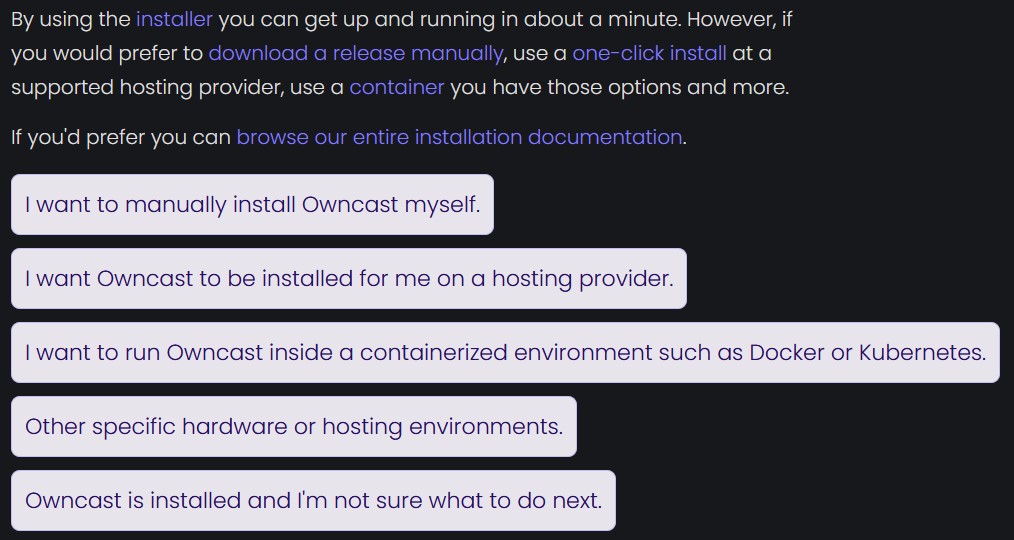
Then it gives you a few options. All of these options are equally easy, and you should choose which ever.
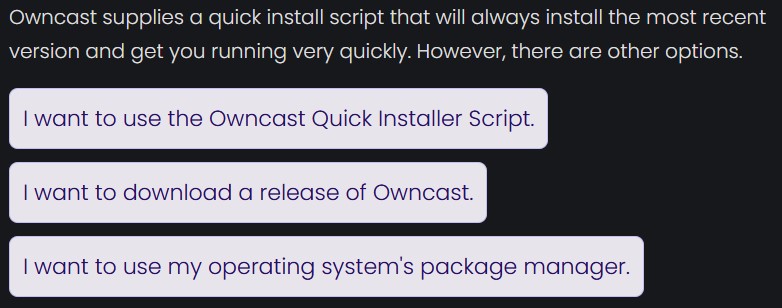
I've chosen the second option here, to download a release of OwnCast. After unzipping the file, simply run it from the terminal like this:
./owncastAnd that's it! OwnCast is now running! Now you can visit the /admin pages, (log in with: admin & abc123) to configure your stream further.

If you are a Windows user, and want to try this out, you could use WSL, or a Docker environment. This does mean you will need to have Docker or Docker Desktop installed. Simply copy the code below in a file that you will name: compose.yml.
services:
  owncast:
    image: owncast/owncast:latest
    container_name: OwnCast
    ports:
      - "8080:8080"
      - "1935:1935"
    volumes:
      - ./data:/app/data
restart: unless-stoppedThen from the same folder, from the command line, run: docker compose up -d. And that's it!
I told you this would be easy. If you tried OwnCast, please let me know what you think of OwnCast in the comments below.
Pick a star to rate this




Recent Comments